
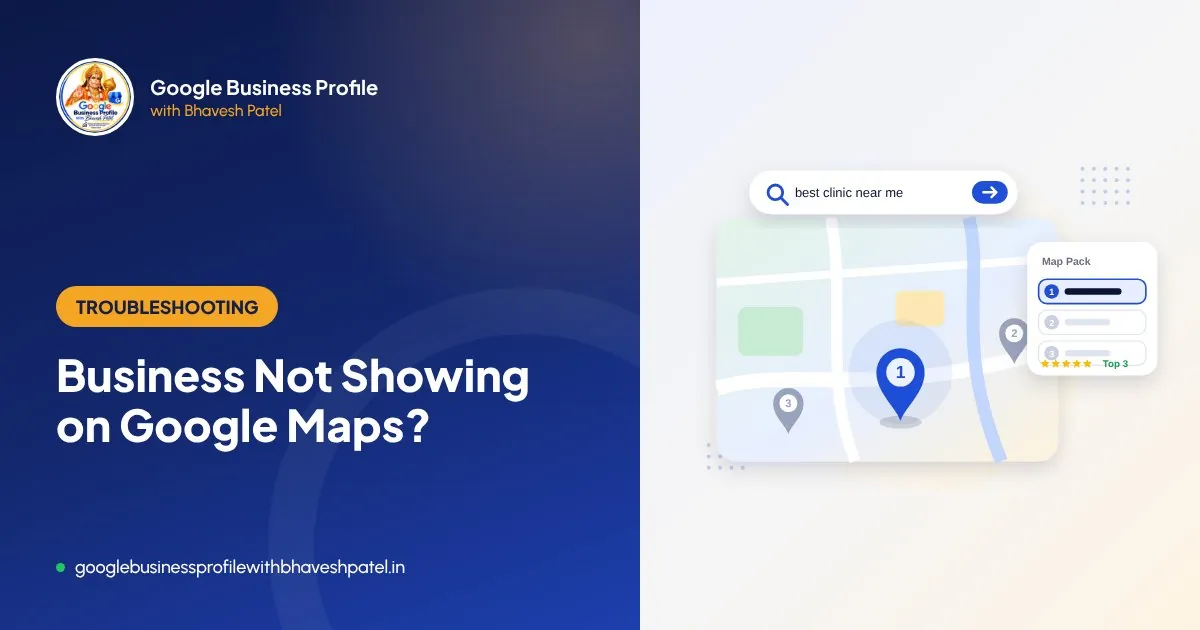
“My business is not showing on Google Maps” is one of the most common messages we get. In most cases the profile still exists. Google is either hiding it, still reviewing it, or simply ranking other businesses above it. Each of those has a different fix, so the first job is to find out which one you are dealing with.
First, check whether it is really missing
Search for your exact business name plus your area on Google Maps, for example “Shree Dental Clinic Chandlodia”. Do it on a phone that is not signed in to your business Google account, or in a private browser window.
- It appears for your name but not for “dentist near me”: your profile is live. This is a ranking problem, covered in reason 8.
- It does not appear even for your exact name: Google is hiding it or has not published it yet. Work through reasons 1 to 7.
To see your profile from the owner side, Google says you need to sign in to the Google account that manages it (Google: find your business on Google). If you cannot remember which account that is, sort that out first.
1. Your profile is not verified yet
Google is clear on this: “Only verified businesses can show their business info on Maps and Search.” If verification is pending, failed, or was never finished, customers will not see your profile.
Fix: open your profile and complete verification. Most businesses in India are now asked for a short video. Our verification guide explains what to show, and our verification help service can take it off your hands.
2. The profile or your edits are very new
Google says new businesses can take up to a month to appear in search results, and changes to business information can take up to three days to show (Google Help).
Fix: give it time, and avoid making edit after edit while you wait. Repeated changes to the name, category or address can send the profile back for review.
3. The profile is suspended or disabled
If Google decides a profile breaks its guidelines, it “becomes disabled or suspended and won’t show to other users on Google until you resolve the issue.” Google sends a notice to the account that manages the profile, so check that inbox and the profile dashboard.
Fix: find and correct the guideline problem before you appeal. Our guide on what to do when your profile is suspended covers the common causes, and our reinstatement service prepares the appeal with you.
4. Google has marked it as a duplicate
Google allows one profile per business. When it decides two profiles describe the same business, the one marked as a duplicate is hidden from Search and Maps (Google Help: duplicate profiles). This often happens after someone creates a second profile for a new address or a separate service.
Fix: keep one profile and remove or merge the others. Our step-by-step guide on duplicate Google Business Profiles explains each situation.
5. An edit is stuck in review
Google reviews changes before they go live (Google Help: edit your Business Profile). A big change, like a new name, category or address, can leave the profile showing old details or behaving oddly until the review finishes. You can check the status of an edit from the profile.
Fix: wait for the review to finish, and make sure the change matches what customers see in real life: signboard, website and invoices.
6. The address or map pin is wrong
If the pin sits on the wrong building, or the address is incomplete, people searching near your real location may not see you. If you moved after verification, Google says “you must verify your business again”.
Fix: correct the address and drag the pin to your entrance. If you have moved, follow our guide on how to change your address on Google Business Profile instead of creating a new profile.
7. You are a service-area business
If you visit customers rather than having them visit you, your address is hidden and you appear for the areas you serve. Google lets you add up to 20 service areas, and suggests they should not be more than about 2 hours’ drive from where you are based (Google Help: service areas).
Fix: check that your service areas are the cities or postal codes where you really work. Do not expect to appear for a search of a street address you have hidden.
8. It is showing, just not ranking
This is the most common case. Google says local results are “mainly based on relevance, distance, and popularity”, and that “there’s no way to request or pay for a better local ranking” (Google Help: local ranking). Someone searching 5 km away will often see closer businesses first.
Fix: work on what you control: the right primary category, a complete profile, regular genuine reviews with replies, fresh photos and a website that matches your profile. Our 15 tips to rank higher on Google Maps go through each one, and our local SEO service does it for you.
9. The profile is incomplete or in the wrong category
Google advises keeping your information “correct, complete and up to date”. A profile with no hours, no services and a vague category gives Google little reason to show it.
Fix: choose the most specific primary category that honestly describes you, then fill in hours, services, description, photos and attributes. See our setup and optimisation service if you want it done properly in one go.
Quick checklist
- Search your exact name and area while signed out
- Check the verification status in your profile
- Check the managing Google account for suspension notices
- Look for a second profile with your name, phone or old address
- Check whether a recent edit is still under review
- Confirm the address and pin, or your service areas
- Compare your category and reviews with the businesses that do appear
Sources
- Google: Find your business on Google
- Google: Tips to improve your local ranking
- Google: Duplicate profiles
- Google: Manage your service area
Frequently asked questions
Please note: Google updates Business Profile features and policies regularly. This guide reflects Google’s help pages and our experience as of 10 November 2026. Always check the official Google Business Profile Help Centre for the latest rules.
About the author: Bhavesh Patel
Google Business Profile and Google Maps expert based in Ahmedabad, Gujarat, helping businesses across India get verified, reinstated and found since 2007. More about Bhavesh