
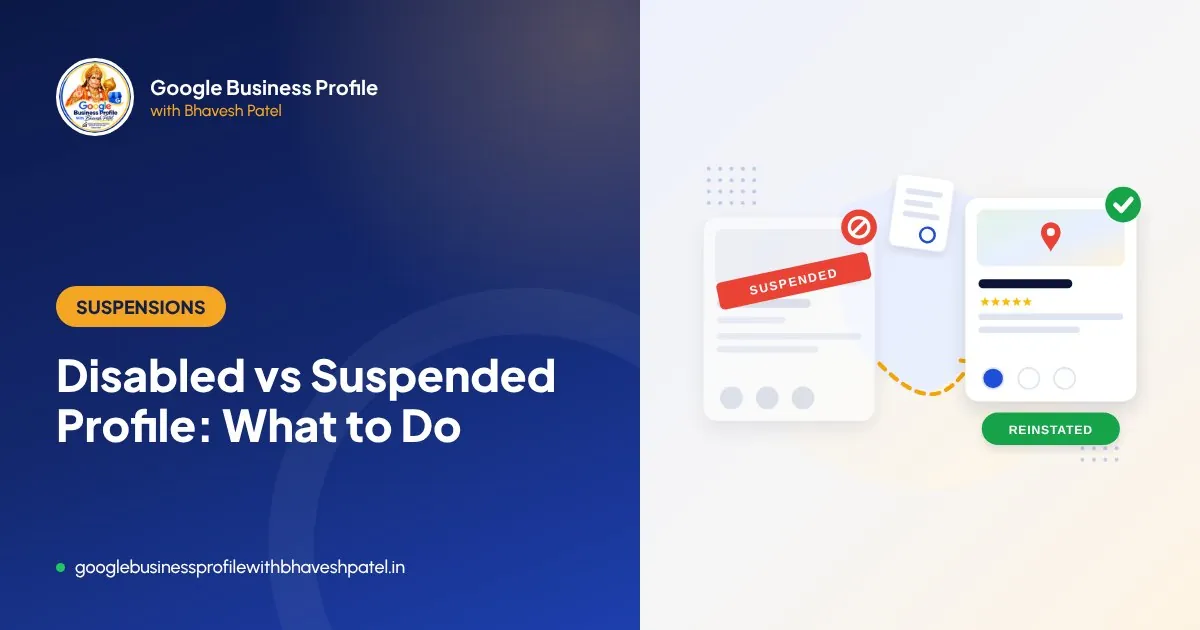
When a Google Business Profile breaks a guideline, owners see words like suspended or disabled, and the internet adds soft and hard suspension on top. The labels matter less than you think. What matters is what Google’s appeals tool tells you, and whether you fix the real cause before you appeal.
What Google actually says
Google’s help page puts it simply: “We may suspend or disable Business Profiles that don’t follow our guidelines” (Google Help). It does not give the two words separate definitions. It also describes two related situations:
- A profile is removed: “The public can’t go to the profile.”
- The whole account is restricted: the profiles that account manages are suspended, and you can’t create or claim other profiles.
What “soft” and “hard” suspension mean
These are industry terms, not Google’s. People usually say soft suspension when the profile still shows to customers but the owner has lost the ability to manage it, and hard suspension when the profile has disappeared from Google Maps and Search. They are useful shorthand for how serious the situation feels, but always go by what the appeals tool says.
Step 1: Check the appeals tool first
Google’s appeals tool shows three things you need before doing anything else:
- the restricted profile
- the reason for the moderation action
- a link to the policy that was violated
Read the linked policy carefully and compare it with your profile. The most common causes we see in India are extra keywords or a city name in the business name, a virtual office or co-working address, a service-area business showing a home address, and details that do not match the signboard. Google’s name guidelines say adding unnecessary information to the name is not permitted and can lead to suspension.
Step 2: Fix the cause before you appeal
An appeal that changes nothing is likely to be “Not approved”. Correct the name to your real-world name, fix the address or switch to a service area, and make sure your website, signboard and documents all show the same details. Our guide on what to do when your profile is suspended lists the common causes in detail.
Step 3: Submit the appeal
- Open the Google Business Profile appeals tool and confirm the account, or switch accounts.
- Select the profile and continue.
- Select Submit Appeal, then Submit.
- If prompted, add evidence through the form.
If the account itself is restricted, Google asks you to appeal the account first from the My accounts page. Once that restriction is lifted, you can appeal the profile. For more than 10 profiles, Google asks for a spreadsheet with the evidence and Business Profile ID for each one.
Step 4: Prepare the right evidence
Google lists official business registration, a business licence, tax certificates and utility bills as examples, and asks you to check that the name and address match the profile. In India that usually means a GST certificate, Udyam registration, Shop and Establishment licence or trade licence, plus a recent electricity, phone or internet bill and clear photos of your signboard.
Important: Google says evidence “must” be submitted within 60 minutes or it won’t be attached to your appeal. Have every file ready before you start.
Step 5: Understand the appeal status
The appeals tool shows one of these statuses: Submitted, Approved, Not approved, Can’t be appealed or Eligible for appeal. Google reviews the appeal and sends the decision by email; it does not publish a fixed timeframe.
If your reinstatement request is denied, Google says it may be able to do an additional review to prove your eligibility, and you can submit more evidence through its contact form. Use that chance only once you have new, stronger evidence.
What not to do
- Do not create a new profile for the same business. It becomes a duplicate, and an account restriction stops you creating or claiming profiles anyway.
- Do not keep editing the profile while the appeal is under review.
- Do not submit blurry, cropped or mismatched documents.
- Do not trust anyone who promises a guaranteed reinstatement. Only Google decides.
Prefer an expert to review it first? Our reinstatement service works with businesses across India.
Sources
- Google: Fix suspended or disabled profiles
- Google: Guidelines for representing your business (name rules)
Frequently asked questions
Please note: Google updates Business Profile features and policies regularly. This guide reflects Google’s help pages and our experience as of 10 November 2026. Always check the official Google Business Profile Help Centre for the latest rules.
About the author: Bhavesh Patel
Google Business Profile and Google Maps expert based in Ahmedabad, Gujarat, helping businesses across India get verified, reinstated and found since 2007. More about Bhavesh