
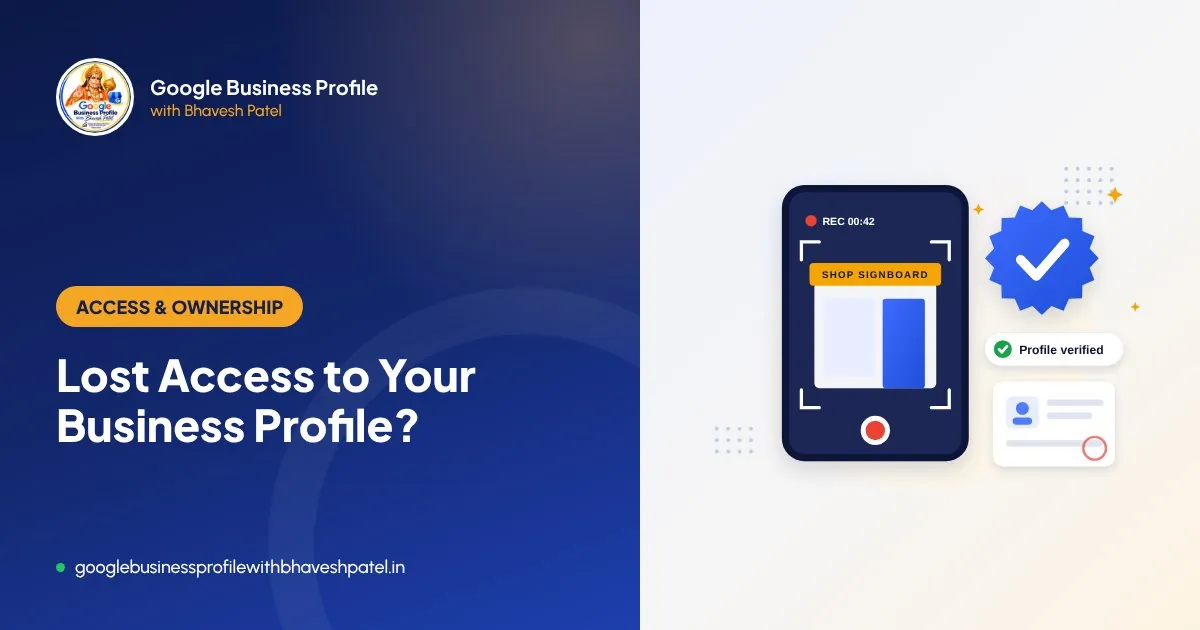
Losing access to a Google Business Profile is common in India: a nephew set it up years ago, an agency created it under its own Gmail, or a staff member left with the login. The profile still belongs to your business, but on Google it belongs to whoever owns that Google account. Here is how to fix that.
Owners, primary owners and managers
Google’s roles work like this (Google Help: manage profile users):
- Owner: full control, including adding or removing users and deleting the profile.
- Primary owner: a profile can have several owners but only one primary owner. Primary ownership can be transferred to another owner or manager.
- Manager: mostly the same access as owners, except they can’t add or remove users or remove the profile.
The goal is simple: you, using a Google account the business controls, should be the primary owner. Staff and agencies should be managers.
Situation 1: You know who controls it
Ask them to add your business Google account as an Owner (Business Profile settings → People and access → Add), then transfer primary ownership to you. Google notes that new users face a 7-day waiting period before they can delete the profile, remove other users or transfer primary ownership, so plan for a week.
Situation 2: You don’t know who controls it
Request ownership through Google (Google Help: request ownership):
- Go to business.google.com/add.
- Enter the name and address of your business.
- Choose your business from the list. You will see “Someone else may manage this Business Profile”.
- Select Request Access, fill out the form and submit.
The current owner is emailed and has 3 days to respond. If they approve, you can manage the profile. If you get no response after 3 days, you may have the option to claim the profile, although Google says this isn’t always available. If you are denied, you can still suggest an edit or try to appeal.
Situation 3: You just forgot which account you used
Check every Gmail you or your staff use, including old ones. To find your profile from the owner side, Google says you must be signed in to the account associated with it. If you cannot get into that account at all, use Google’s account recovery before trying anything else. Creating a new profile instead only creates a duplicate.
Situation 4: Something changed that you didn’t approve
- Secure the Google account that owns the profile: change its password and turn on 2-Step Verification.
- Check People and access. Only owners can remove other owners and managers, and removed users get an email.
- Check the name, phone, website and address for edits you didn’t make, and correct them.
- If you are no longer an owner, request ownership as in Situation 2.
How to make sure it never happens again
- Create one long-term business Google account and make it the primary owner.
- Keep a second owner from inside the business, such as a partner or family member.
- Add agencies and staff as managers, each with their own Google account. Google says each user needs their own Google Account, so nobody has to share a password.
- Review People and access every few months and remove anyone who has left.
When you work with us, you stay the owner and add us as a manager. See how we work on our profile management page.
Sources
Frequently asked questions
Please note: Google updates Business Profile features and policies regularly. This guide reflects Google’s help pages and our experience as of 10 November 2026. Always check the official Google Business Profile Help Centre for the latest rules.
About the author: Bhavesh Patel
Google Business Profile and Google Maps expert based in Ahmedabad, Gujarat, helping businesses across India get verified, reinstated and found since 2007. More about Bhavesh